Reference
User Guide
The complete SAGA workflow reference, from startup and project setup through markup, configuration paths, validation, PDF publication, and support.
SAGA — Shawn’s Assembly Guide Authoring — is an Autodesk Fusion add-in for creating illustrated assembly guides from the model and view already open in Fusion. SAGA 1.0.2 is LIVE on the Autodesk Design and Make Marketplace. Projects remain editable in normal local folders, and SAGA creates one complete PDF in the project folder when the guide is ready.
For a shorter first-use walkthrough, start with the Quick Start. Use Troubleshooting when something appears broken, access is not recognized, or publication fails.
Access, installation, and startup
SAGA is a Windows add-in for Autodesk Fusion. Close Fusion before installing, updating, or removing it.
Start SAGA in Fusion
- Open Fusion and go to Utilities > Scripts and Add-Ins.
- Open the Add-Ins list and find SAGA.
- Turn Run on to start SAGA for the current Fusion session.
- If you want Fusion to start SAGA automatically later, enable Run on Startup.
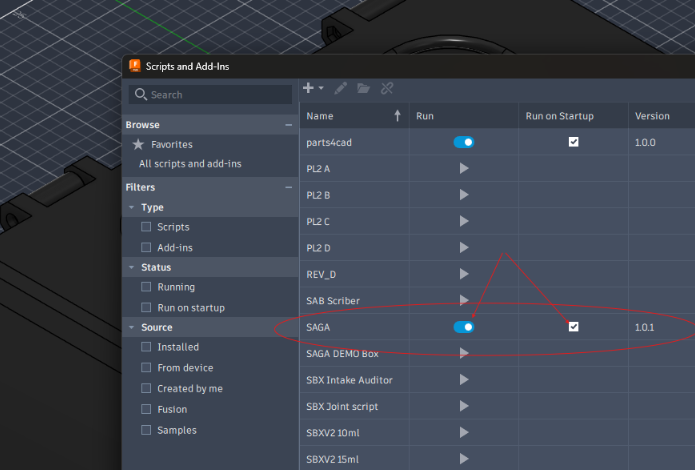
Once the add-in is running, you do not need to return to Scripts and Add-Ins just to reopen the SAGA palette. Use Fusion’s Add-Ins menu instead.

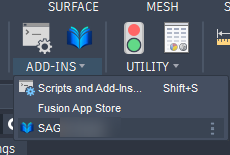
SAGA checks Marketplace access for the Autodesk account signed into Fusion. If access is not recognized, see Marketplace access.
Help: use Help in the SAGA palette, or press F1 while the SAGA palette has keyboard focus.
Projects and local storage
A SAGA project stays in a normal local folder on your computer. That folder keeps the editable guide and its related files together, including captures, markup, imported BOM files, cover assets, and generated PDFs.
Keep the complete SAGA project folder together when you move, back up, or archive a guide. Do not rename individual files inside the project folder.
SAGA does not upload your Fusion model or guide content to a SAGA-operated server.
Create a new project
On the Project tab:
- Enter the Product name.
- Enter the Product revision and Manual revision.
- Enter the Manual title and Author.
- Select Browse and choose the parent folder where the SAGA project should be created.
- Select New Project.
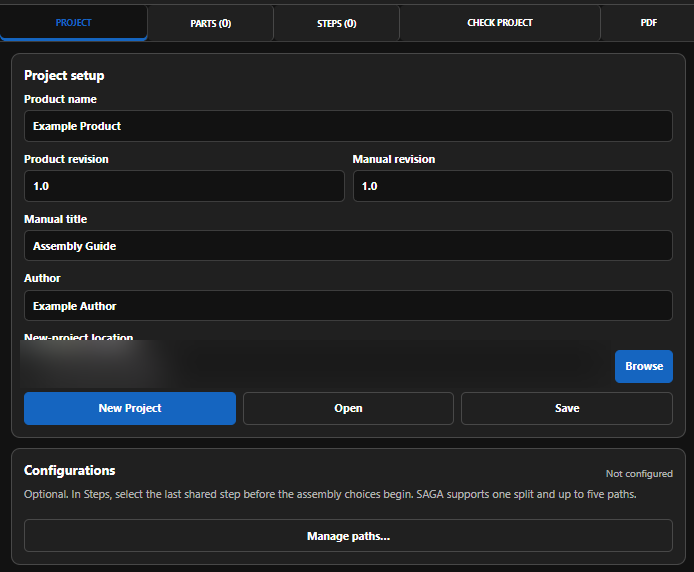
SAGA creates the project folder and opens Steps so you can begin the guide.
Product revision tracks the physical design. Manual revision tracks the instruction document, so the manual can be revised without changing the product revision.
Open an existing project
Select Open on the Project tab and choose the existing SAGA project folder. You do not need to complete the new-project fields first.
Save your SAGA project
Use Save on the Project tab after meaningful changes and before closing Fusion. A green Saved message confirms that the SAGA project was written to disk.
Generating a PDF does not lock the project. You can reopen the SAGA project later, make changes, and generate an updated guide.
Project settings
Manual cover
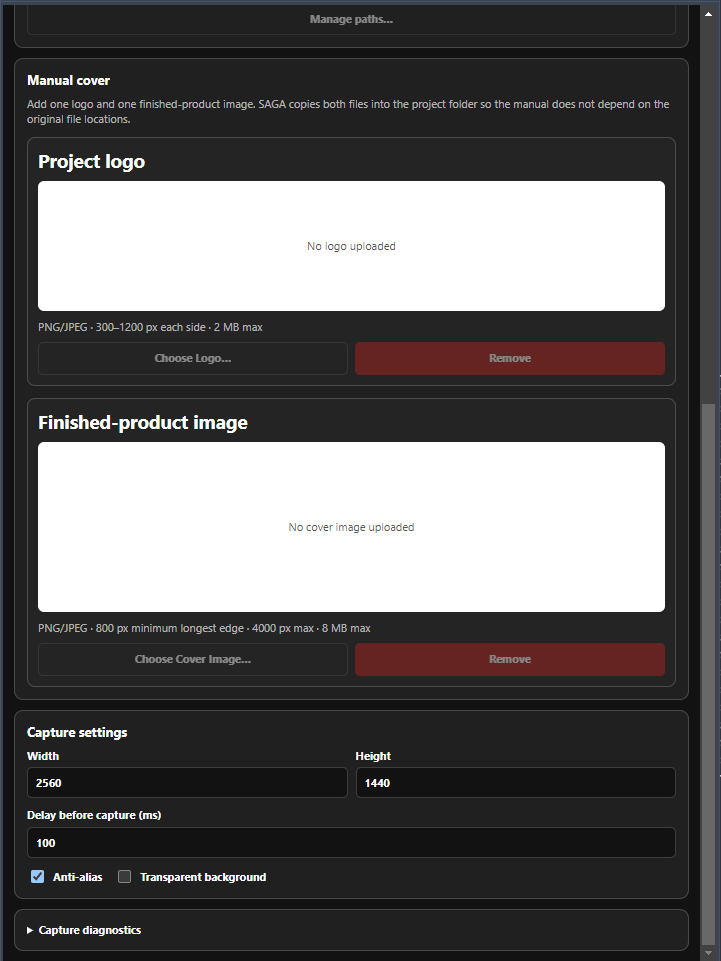
The Project tab can include an optional company/project logo and one finished-product image for the manual cover. Select Choose Logo or Choose Cover Image to add them. SAGA copies both files into the project folder, so the guide does not depend on their original locations.
Capture settings
The demonstrated defaults are 2560 × 1440, a 100 ms delay, and Anti-alias enabled. Adjust them when a project needs a different capture size or delay.
Transparent background is off the first time you use SAGA. Turn it on before the first transparent capture you want to make. After you select it, SAGA remembers that choice for later runs. You can still turn it on or off for an individual capture.
Capture settings affect new or replacement captures only. Changing a setting does not alter an image that has already been captured; recapture that step when you want the new setting applied.
Capture diagnostics
Capture diagnostics is for troubleshooting, not normal authoring. Use it only when captures appear not to be working correctly. It can capture one diagnostic image for inspection or a rapid set of 30 images for repeated-capture testing.
Parts, hardware, tools, and consumables
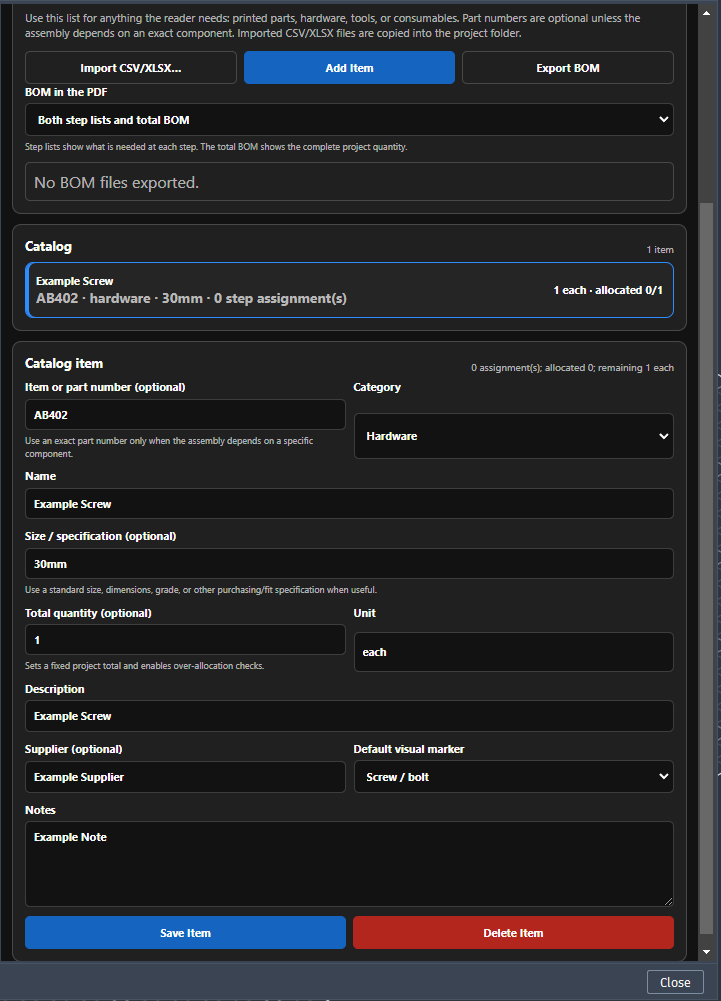
The Parts tab is SAGA’s project catalog and BOM workspace. Add the things a reader needs for the assembly: printed parts, purchased hardware, tools, and consumables such as glue.
You can Import CSV/XLSX, Add Item manually, or Export BOM from the project.
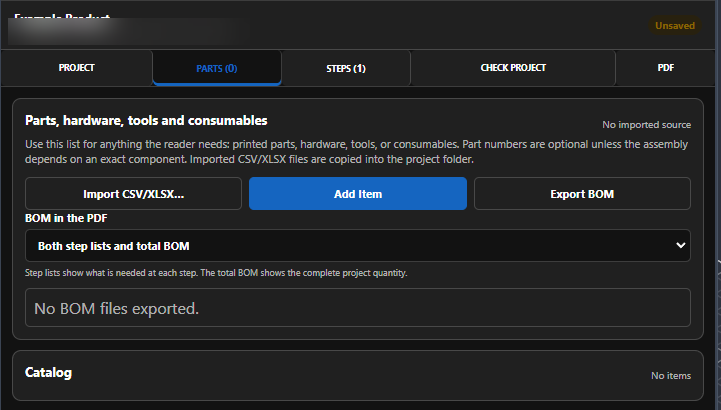
Add an item
- Select Add Item.
- Choose the Category: Part, Hardware, Tool, or Consumable.
- Enter a clear Name and Unit.
- Add an item/part number, size or specification, project quantity, description, supplier, or notes when they are useful.
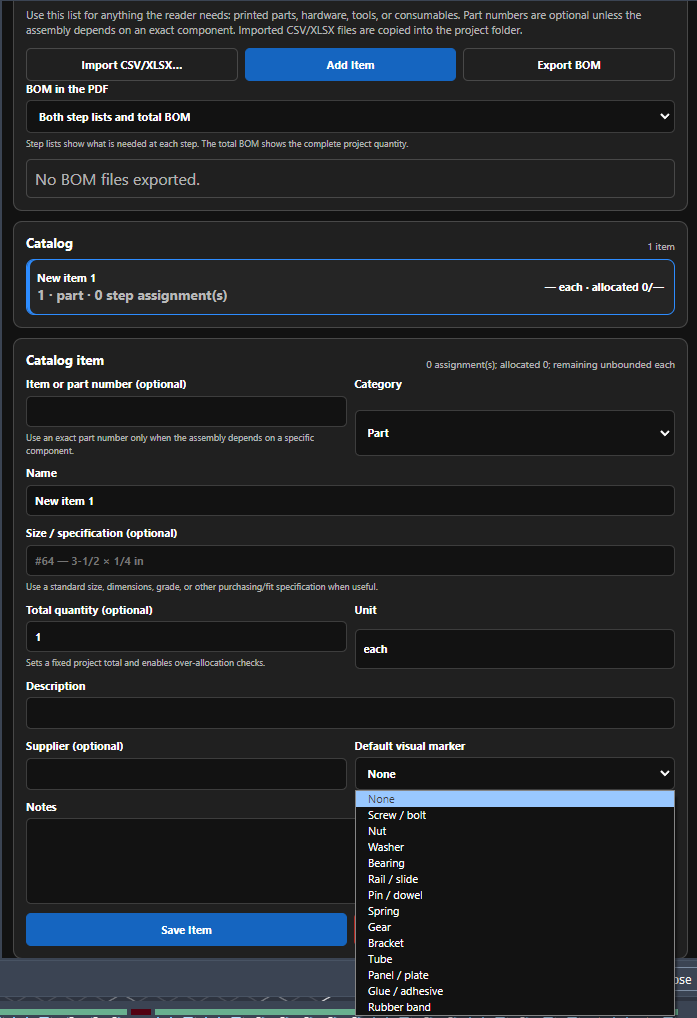
- Choose a Default visual marker when you want SAGA to suggest a symbol for that item in step markup.
- Select Save Item.
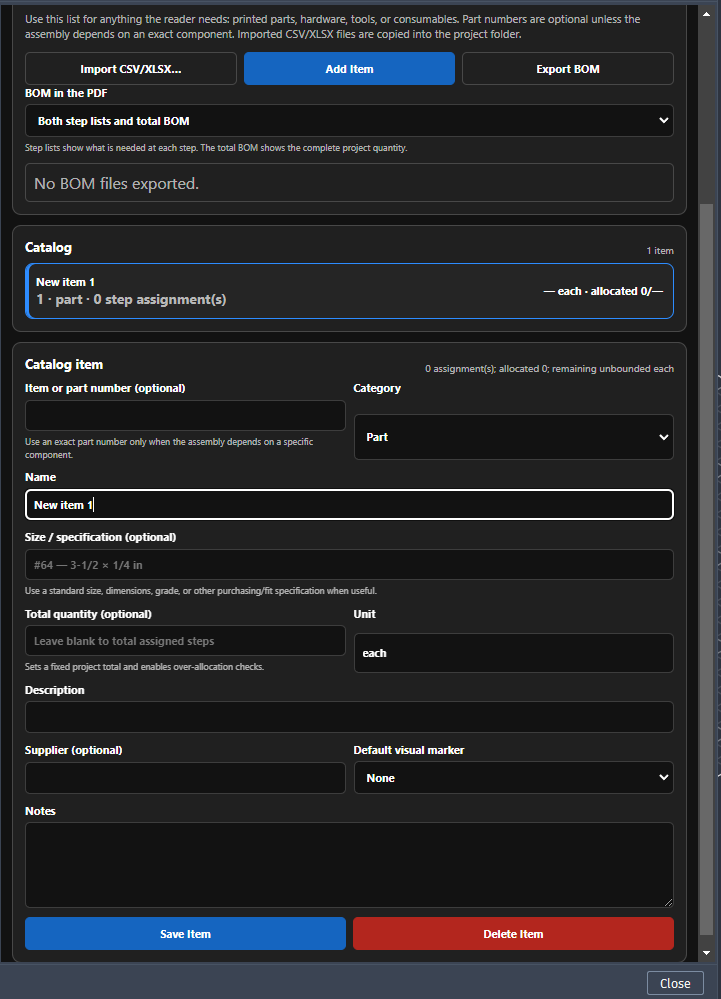
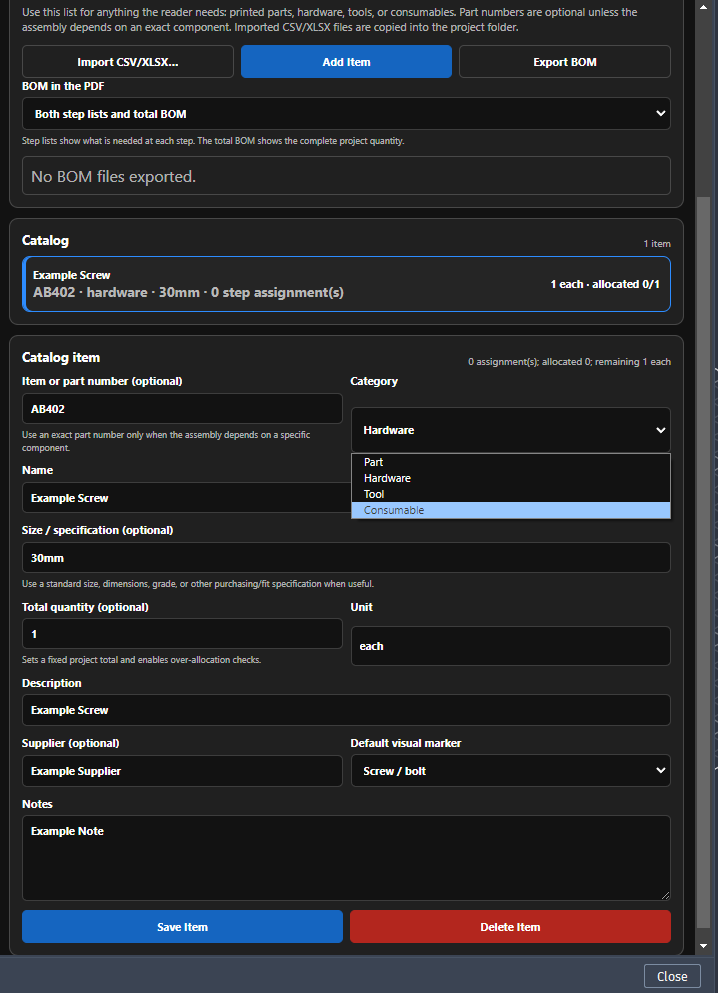
A default visual marker is separate from the category. For example, a Hardware item may use a Screw / bolt, Nut, or Washer marker; a consumable may use Glue / adhesive. The marker can be changed later when you mark up a step.
Quantity and allocation
Total quantity is optional. Leave it blank when you do not need a fixed project total. Enter a quantity when SAGA should check how many units are allocated across the guide.
After an item is saved, its catalog card shows the total and current allocation. Step assignments and BOM-aware part callouts update that allocation as the guide is built.
Import a BOM
SAGA can import CSV and XLSX files and copies the source file into the SAGA project. The import needs a recognized name column such as Name, Item Name, or Part Name; other supported fields can supply category, quantity, unit, item number, description, supplier, notes, and visual marker.
Download the SAGA BOM import template.
The BOM in the PDF control determines how the BOM is included when the guide is published. You can also use Export BOM when you need the project BOM as a separate file.
Steps, captures, and markup
A normal SAGA step follows the same three-part workflow every time: Details → Image → Markup.
1. Set up the step
On Steps, select + New Step. SAGA creates the step and opens Details.
Use Details to:
- give the step a short, useful title;
- leave the printed step number blank for automatic numbering unless you need to override it;
- assign the parts, hardware, tools, or consumables needed for this step;
- create a configuration split later when this completed step is where alternate assembly paths begin.
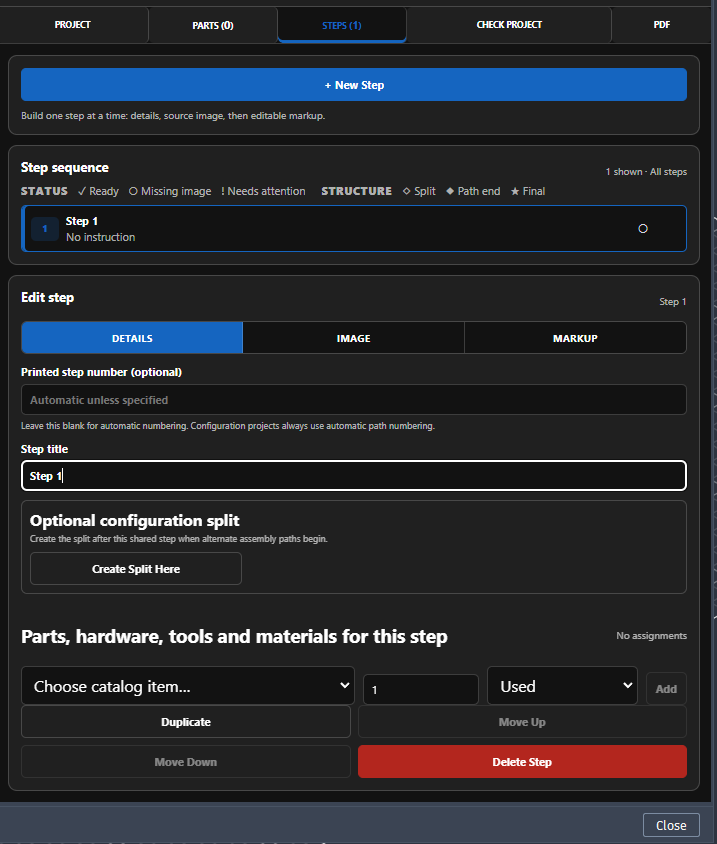
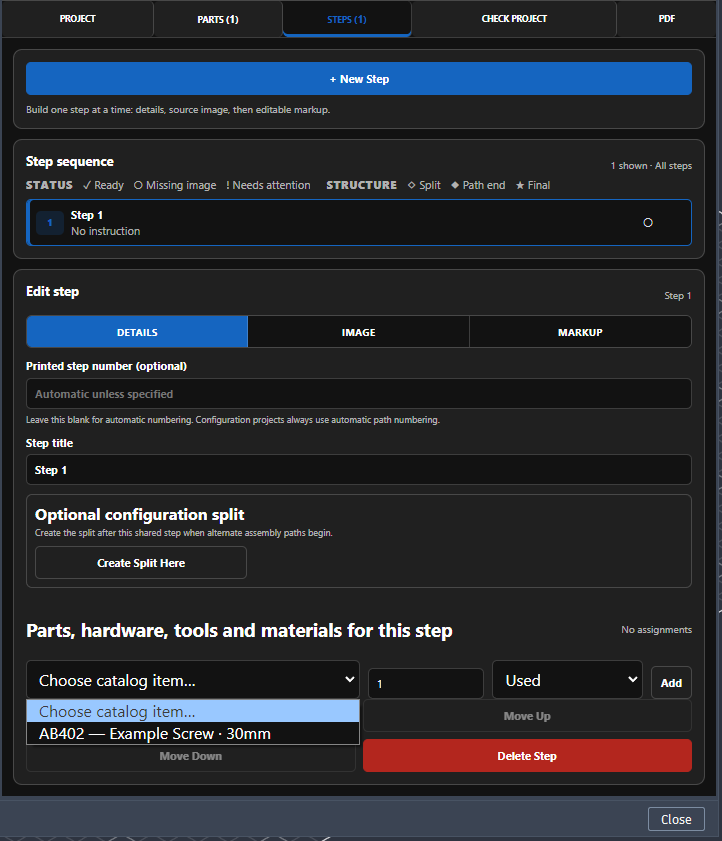
To assign a catalog item, choose it from Choose catalog item, set the quantity, choose Used or Introduced as appropriate, and select Add.
2. Capture the Fusion view
Open Image, then arrange the Fusion viewport exactly as you want the reader to see it. Rotate or zoom the model, change component visibility, highlight or ghost geometry, and prepare the assembly state for that instruction.
Select Capture View when the viewport is ready. SAGA captures the current Fusion view and moves you to Markup.
If you replace an existing capture, SAGA moves the previous source image to the project’s trash. Any markup tied to the old image should be reviewed after recapture.
3. Add the instruction and markup
The written Instruction, notices, and image markup are added on Markup.
Write one clear assembly instruction. Add notices only when they help the reader, and select Add Notice for each notice you want to keep.
SAGA places notices automatically:
- Above the instruction: Do not, Warning, Caution
- Below the instruction: Information, Inspect, Check
The markup tools are:
| Tool | Use it for |
|---|---|
| Select | Select, move, resize, restyle, duplicate, reorder, or delete existing markup. |
| Arrow | Point to a location or show direction. |
| Leader | Draw a connector line without an arrowhead. |
| Alignment | Add a dashed visual alignment guide between parts or features. |
| Label | Place short image-specific text. |
| Part Callout | Identify a catalog item and, when needed, connect the callout to the part with a movable leader. |
| Marker | Place a visual symbol for a part, process, or non-BOM action such as glue or cutting. |
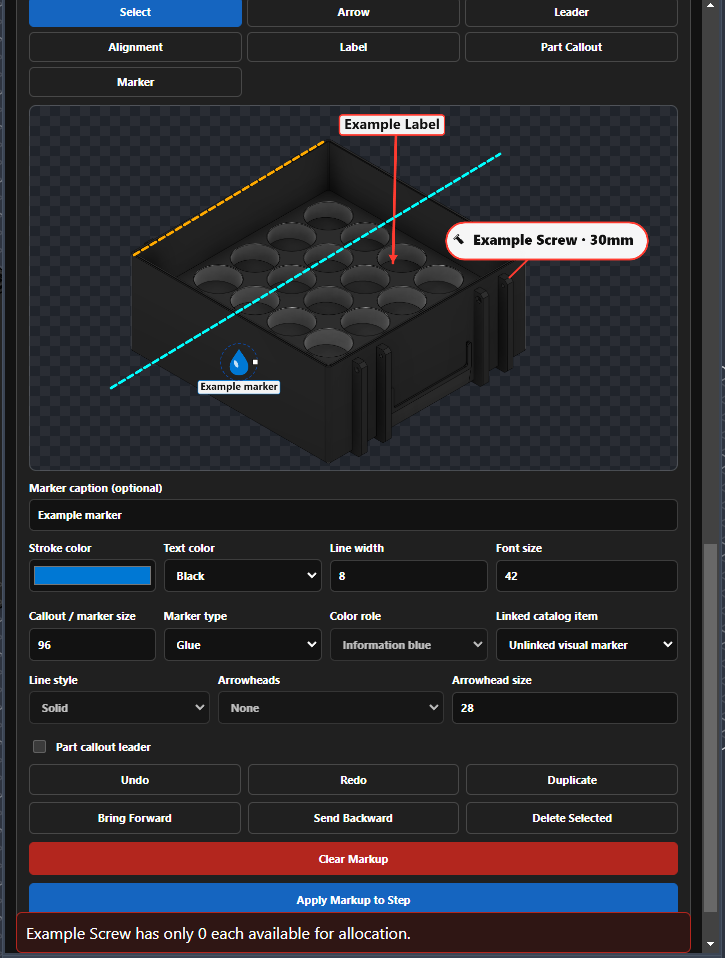
Part Callout and BOM quantity
A Part Callout can use a catalog item and its default visual marker.
- Install or use quantity counts the displayed quantity against the catalog total.
- Reference only identifies the item without allocating another unit.
Enable Part callout leader when you want the callout bubble connected to a specific location. Without it, the callout remains a standalone bubble.
Finish the step
When the instruction and image markup are ready, select Apply Markup to Step. This applies the current instruction/markup state to the step for publication while keeping the markup editable in the SAGA project.
That completes the normal step workflow. Repeat Details → Image → Markup → Apply Markup to Step for each ordinary or configuration-path step.
Leaving Markup with unapplied changes
If you leave Markup before applying your current work, SAGA asks what to do:
| Choice | Result |
|---|---|
| Apply and Continue | Applies the current instruction/markup and continues to the destination you selected. |
| Discard Changes | Discards the unapplied instruction/markup state. The active step image can also be moved to project trash, so you may need to recapture before Markup can continue. |
| Cancel | Stays in Markup without applying or discarding the work. |
If Discard leaves the step without an active image, return to Image, arrange the Fusion viewport, capture the step again, then continue in Markup. See After Discard Changes, the step image appears broken.
Configuration paths
Use configuration paths when the assembly has one or more shared opening steps and then splits into alternate build choices.
SAGA 1.0 supports one split with up to five paths. Nested configuration splits are not supported.
Create the split
Complete the shared step first, including its capture and Apply Markup to Step. Then, on that step’s Details tab:
- Select Create Split Here.
- Name the Primary path and Alternate path.
- Select Create Split.
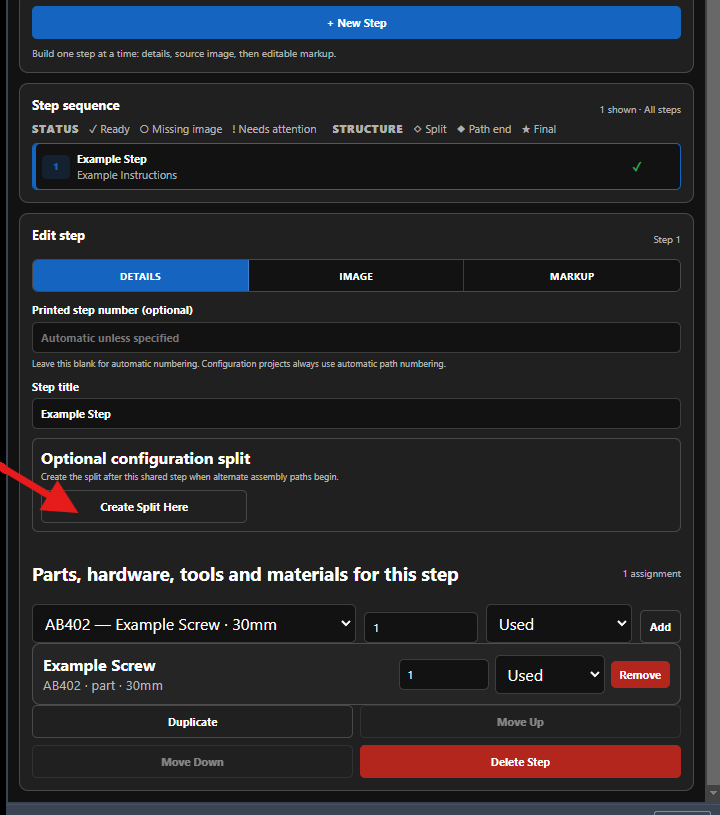
On the main sequence, the primary path starts as Standard. If a split is being created from an existing path, the current path provides that path context. Give the alternate path a clear name that describes the assembly choice.
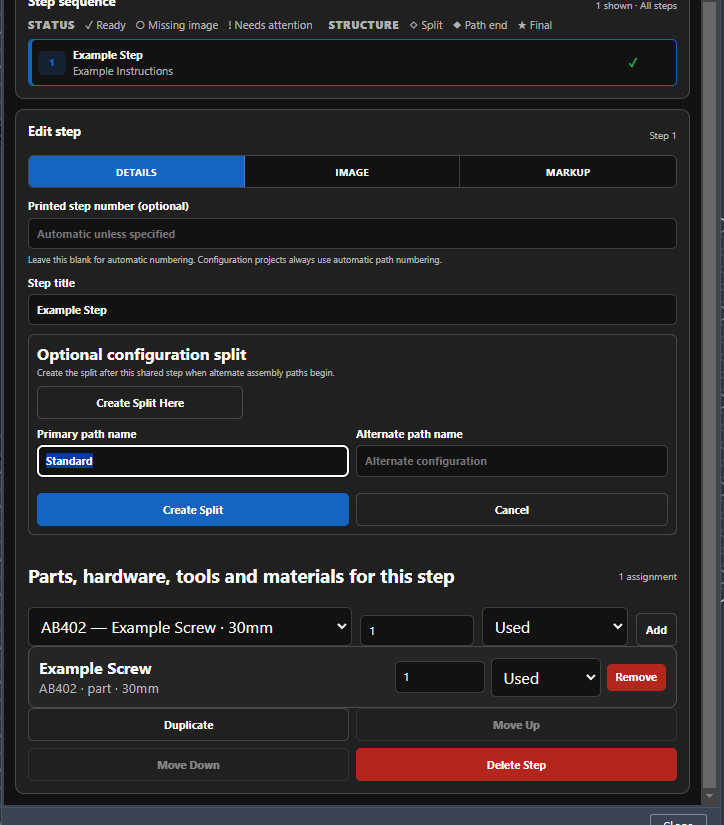
Creating the split does not force you to build the alternate path immediately. You can keep working on the main path and return to the branch later.
Work on a branch
To switch to a configuration path:
- In Step view, select Manage.
- Find the path you want in Configuration paths and select View.
- Confirm that Step view now shows that path.
- Select + New [Path name] Step.
- Build the step normally: Details → Image → Markup → Apply Markup to Step.
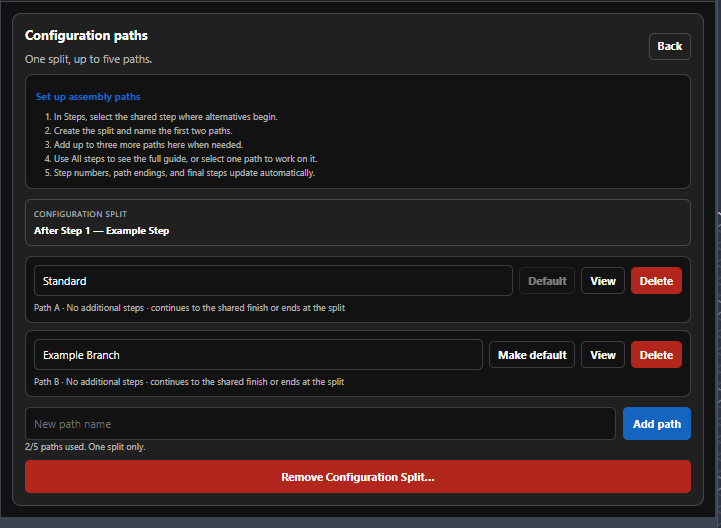
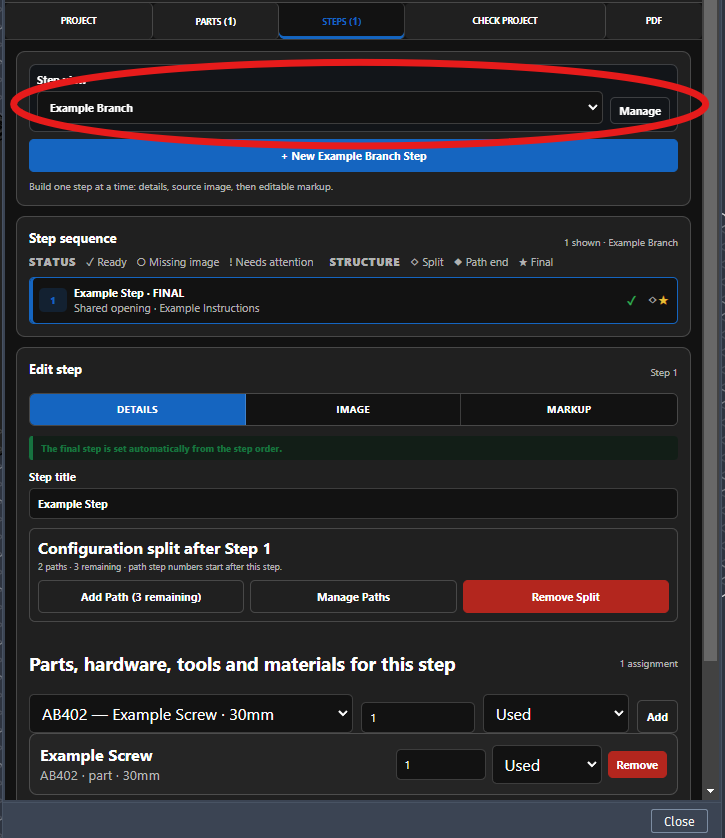
To return to the main path, open Manage again and View the main path.
Automatic numbering and final steps
SAGA numbers configuration steps automatically from the step where the split begins. For a split after Step 1:
- first step in the first alternate branch: 1B.1;
- next step in that branch: 1B.2;
- first step in another branch from Step 1: 1C.1.
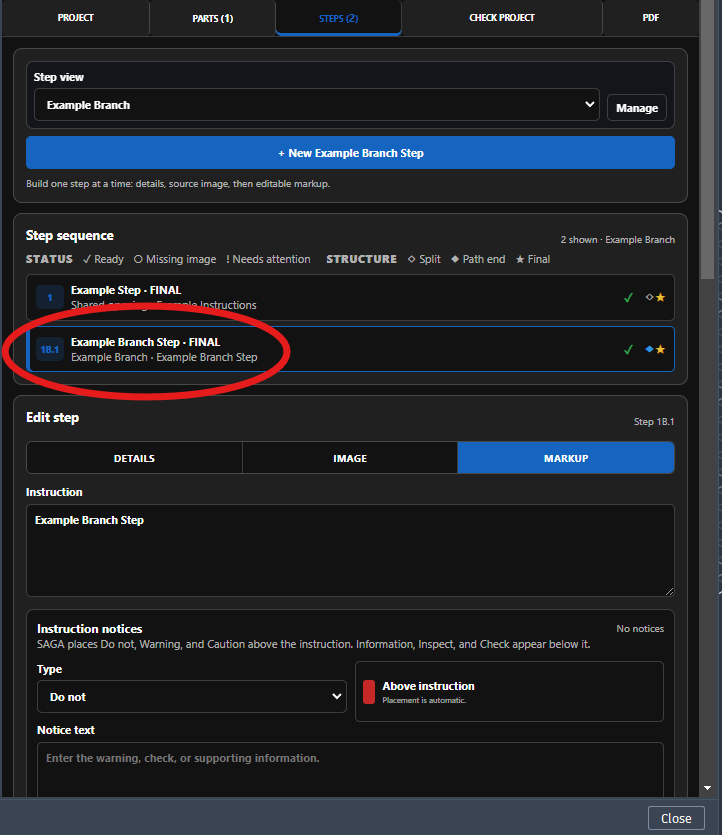
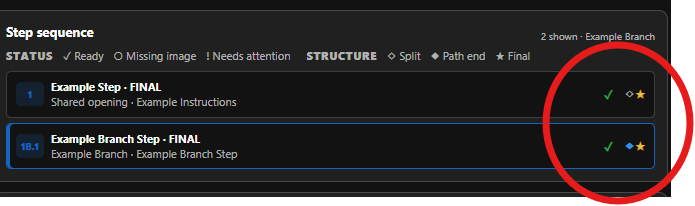
The last step on the main path is the overall final step. The last step on each alternate path is that path’s ending/final step. SAGA updates these from the step order; you do not manually mark a step as final.
The icons at the right of each step show readiness and structure. A check indicates the minimum step requirements are met, while the path-end and final symbols show where that sequence ends.
Check Project
Before the final check, return to Project and select Save. Confirm the green Saved message.
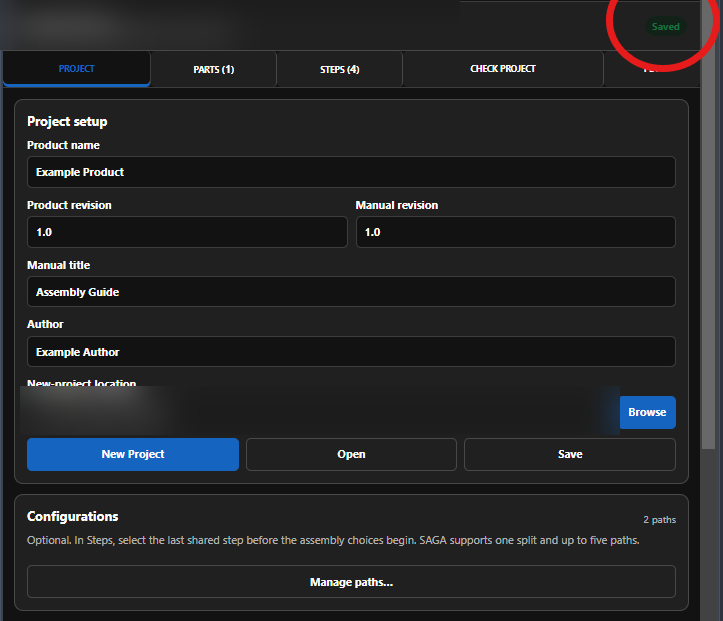
After a save, later navigation in Fusion can make SAGA show Unsaved again because Fusion’s view/timeline state has changed. The SAGA guide content that was successfully saved remains saved. SAGA does not save unrelated Fusion model or viewport changes.
Then open Check Project:
- Select Check Project.
- Fix any errors; errors block PDF generation.
- Review any warnings; warnings do not block PDF generation.
- Run the check again after making corrections.
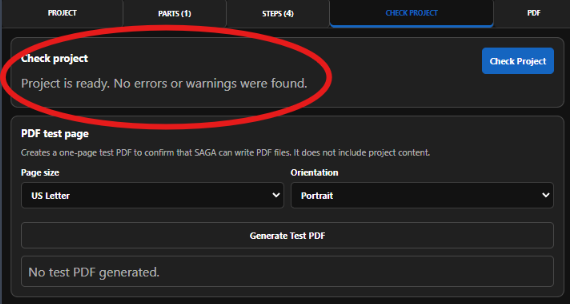
A clear project reports Project is ready. No errors or warnings were found. If a result points to a step, open that step, correct the problem, and run Check Project again.
See The project check reports an error if a result is unclear or publication remains blocked.
Create the PDF
After Check Project is clear, open PDF.
- Choose Page size: US Letter or A4.
- Choose Orientation: Portrait or Landscape.
- Choose whether to include the Cover page, Contents and links, and Bill of materials.
- Select Generate PDF.
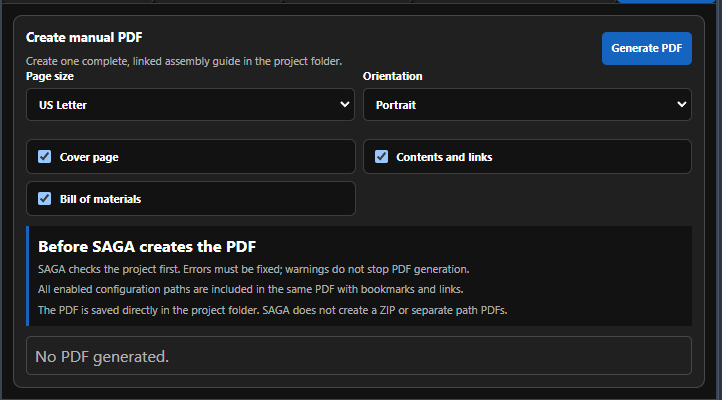
SAGA checks the project again before it creates the PDF. Errors must be fixed; warnings do not stop generation. All enabled configuration paths are included in the same PDF with their navigation links and bookmarks.
The PDF is saved directly in the SAGA project folder. SAGA does not create a ZIP or separate PDF for each configuration path.
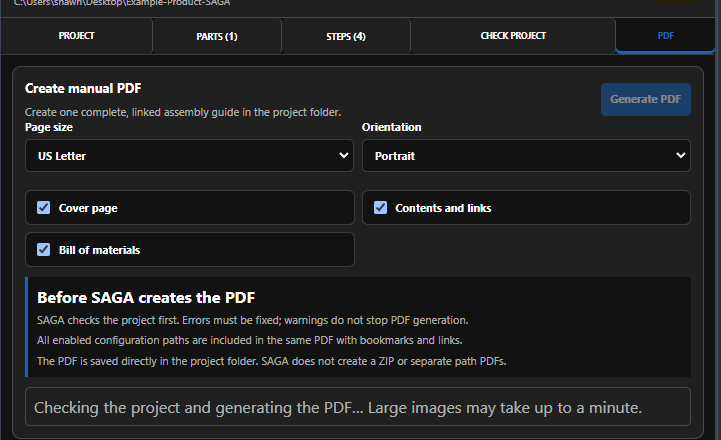
While the guide is being built, SAGA shows the generation status. Large, high-resolution step images can take longer to process.
When the PDF is complete, SAGA reports the created file and where it was saved.
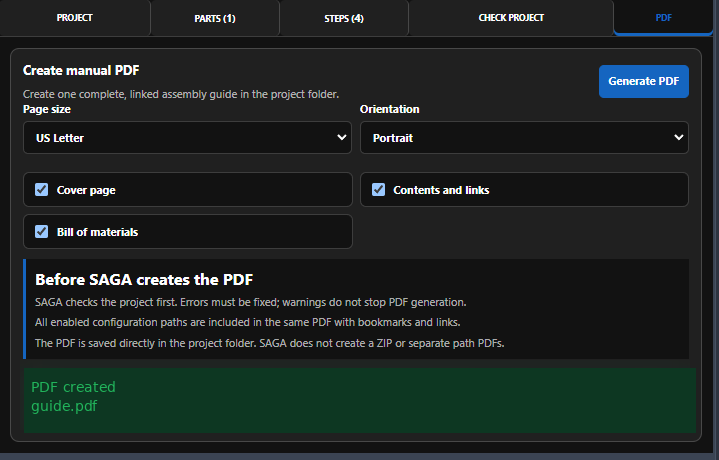
Open the project folder to review or share the finished guide. If Windows reports that the output PDF is already in use, close it in the PDF viewer and generate it again.
Congratulations — you have created your first assembly guide with SAGA.
Marketplace access
SAGA uses the Autodesk account signed into Fusion to check whether Marketplace access is active. The Marketplace listing is live as a one-time purchase with Autodesk’s Free 30-Day Trial option.
The trial is the full SAGA experience: there is no trial watermark, and the project logo and cover image remain available. SAGA does not run a second, separate trial clock on your computer.
If SAGA says access is required
SAGA only needs to know whether Autodesk currently reports valid access for the account signed into Fusion. Autodesk does not tell SAGA whether that access comes from a trial or a purchase.
If the palette shows Access required:
- Check that Fusion is signed in with the Autodesk account you used for SAGA.
- If you have not started the trial or purchased SAGA yet, do that through the Autodesk Marketplace using the same account.
- Return to SAGA and select Check again.
When access is valid, SAGA shows Access active.
If Autodesk cannot be reached
If SAGA has already received a successful access check, it can use that result for up to 24 hours during a temporary Autodesk-service or network problem. This keeps a brief outage from interrupting work you were already doing.
If Autodesk later returns a completed result showing that access is no longer valid, that result takes effect immediately. The 24-hour fallback does not change, pause, or extend an Autodesk trial.
Do not delete SAGA’s local access data unless support asks you to. Removing it simply means SAGA must verify access online again.
When access is no longer active
If Autodesk no longer reports valid access, SAGA authoring and PDF generation are unavailable until access is active again.
Your existing work stays on your computer. SAGA does not delete or change existing project folders, project content, or PDFs you already created.
If you believe access should still be active, see A trial or purchase is not recognized.
Logs, help, and support
For built-in help, select Help in the SAGA palette. You can also press F1 while the SAGA palette has focus. If the Fusion canvas has focus instead, Fusion handles the F1 key.
If you need support
Email sagaappsupport@gmail.com and include the information that will help reproduce the problem:
- your SAGA version;
- your Fusion version;
- your Windows version;
- the exact error message, if one appears;
- what you were doing when the problem happened.
A screenshot or SAGA log can also help when the problem is difficult to reproduce.
SAGA keeps diagnostic logs here:
%LOCALAPPDATA%\SAGA\logs
Before sending a screenshot or log, check it for project names, file paths, customer information, or anything else you would rather keep private. Remove that information unless support needs it to understand the problem.
For support scope, privacy, licensing, or common fixes, see the Support Policy, Privacy Policy, Licensing, and Troubleshooting.