Getting started
Quick Start
Go from first launch to a finished SAGA PDF, with the full User Guide available when you need more detail.
1. Install and start SAGA
Install SAGA through the Autodesk Design and Make Marketplace. Close Fusion before installing, updating, or removing the add-in.
In Fusion:
- Open Utilities > Scripts and Add-Ins.
- Open the Add-Ins list and select SAGA.
- Turn Run on to start SAGA for the current Fusion session.
- Enable Run on Startup if you want Fusion to start SAGA automatically later.
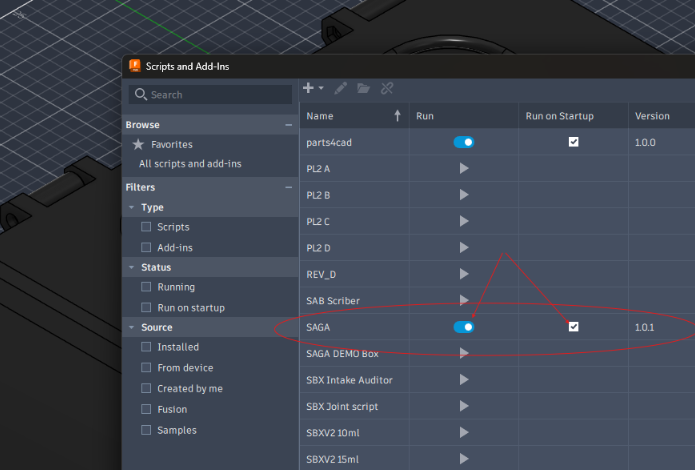
Once SAGA is running, use Fusion’s Add-Ins menu to open or reopen the SAGA palette.
2. Confirm Marketplace access
SAGA uses Autodesk Marketplace entitlement verification for both the Free 30-Day Trial and purchased access.
- Access active means the signed-in Autodesk account can use SAGA.
- Access required means Autodesk is not currently reporting valid access for that account.
If access is required, start the Marketplace trial or purchase SAGA using the same Autodesk account, return to Fusion, and select Check again. SAGA does not run a separate local trial clock.
3. Create or open a project
On Project:
- Enter the product name, product revision, manual revision, manual title, and author.
- Choose the parent folder for the new project.
- Select New Project.
- Add a logo and finished-product image when useful.
- Review the capture settings before you begin capturing steps.
Use Open instead when you want to continue an existing SAGA project.
SAGA keeps the editable project, captures, imported BOM files, cover assets, and generated PDFs together in the local project folder.
4. Add parts, hardware, tools, and consumables
Open Parts to add catalog items manually or import a CSV/XLSX bill of materials. A part number is optional unless the assembly depends on an exact component.
The import source needs a recognized name column such as Name, Item Name, or Part Name.
Download the SAGA BOM import template.
5. Create the first step and capture the view
- Open Steps and select + New Step.
- On Details, enter a short step title.
- Assign any parts, hardware, tools, or consumables needed for the step.
- Open Image.
- Arrange the Fusion viewport so it shows the assembly state you want the reader to see.
- Select Capture View. SAGA captures the current Fusion view and opens Markup.
6. Add the instruction and markup
On Markup, write the step instruction and add any notices or visual guidance that help explain the operation. SAGA provides arrows, leaders, alignment lines, labels, visual markers, and BOM-linked part callouts.
When the instruction and markup are ready, select Apply Markup to Step. Then save the project from the Project tab.
7. Check the project
Open Check Project and run the check.
- Fix every error before publication.
- Review warnings; warnings do not block PDF generation.
8. Generate the PDF
- Open PDF.
- Choose US Letter or A4.
- Choose Portrait or Landscape.
- Choose whether to include the Cover page, Contents and links, and Bill of materials.
- Select Generate PDF.
SAGA writes the complete PDF directly into the project folder.
Help while you work
Select Help in the SAGA palette or press F1 while the palette has keyboard focus. Fusion routes F1 to the active pane, so SAGA help will not open while the Fusion canvas has focus.
Continue with the User Guide for more detail on capture settings, BOM allocation, notices, configuration paths, validation, Marketplace access, logs, and support.